
Install PrintLab
Install PrintLab from the Shopify App Store and open it from your admin. You land on the Overview page.
The Setup status card shows three steps: turn on personalization for a product, add the designer to your store, and get your first personalized order. It updates as you go.
Turn on the print fee
Go to Settings → Print Surcharge and click Create automatically. PrintLab creates a “Print fee” product and uses it to add the print price to the cart as a separate line.
The product keeps its normal Shopify price; only the print fee is added on top. If this step is skipped, orders show a Print Fee Missing badge.
Add PrintLab to your theme
In Settings → Theme Setup, click Open App Embed (Theme Editor). In the theme editor, turn on the app embed named Baskı Ücreti Koruma (print fee protection) and save. It keeps the print fee line in the cart and shows design previews there.
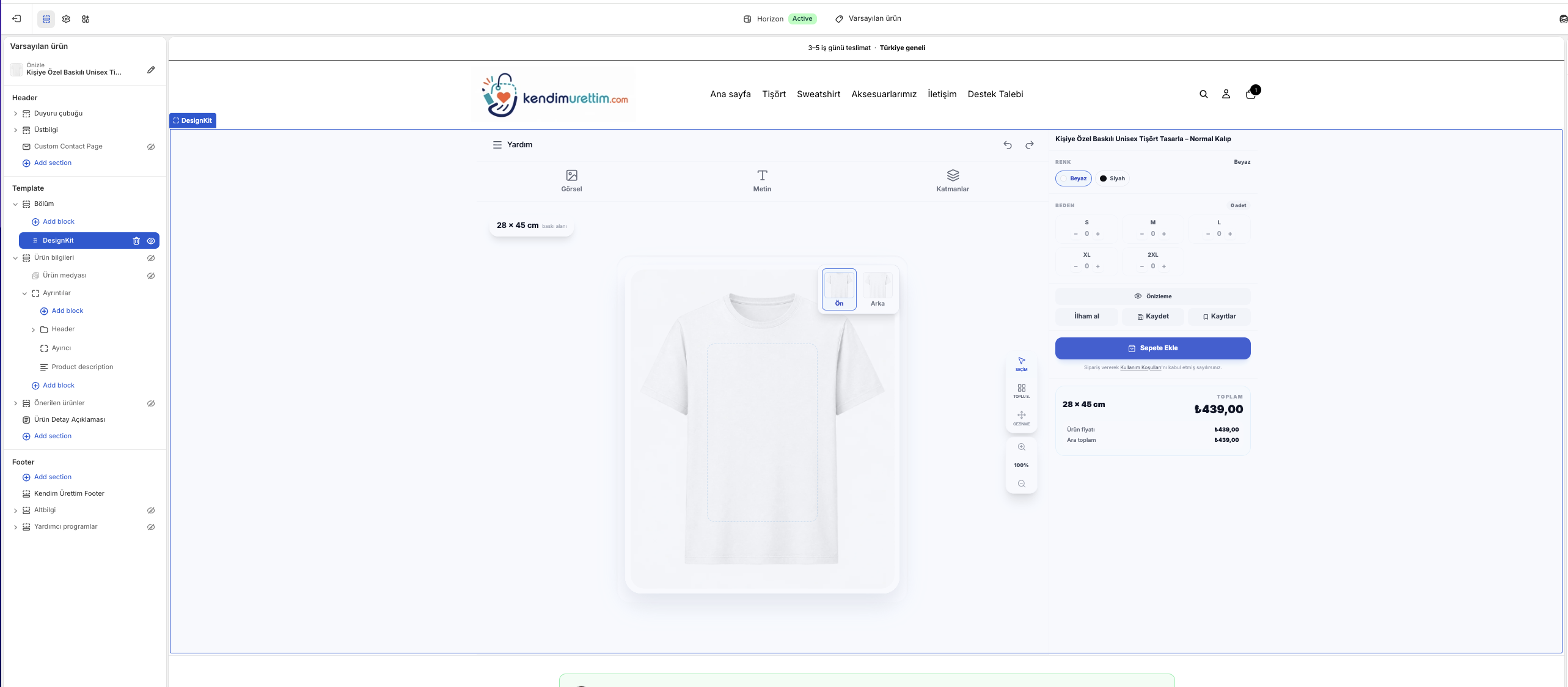
Back in Theme Setup, click Add to Main Section. This adds the DesignKit block to your product page template. Save the theme. Your theme must support app blocks (Online Store 2.0 themes do).
The block only appears on products you set up in PrintLab; other products look the same as before.
Set up your first product
Option A — customers design freely. On the Overview page click Set up a product, find the product and click Open settings. Choose the sides (front + back or front only), draw the print area in the Print area editor, set the Placement area and Maximum artwork size in millimetres, and add Print price bands (for example a small, medium and large print with their surcharge). Click Save.
Optionally add a Starter design. For each element you choose what the customer may do: “Free”, “Fixed position” (only the text and color change) or “Locked”.
Option B — ready-made templates. Open Personalizer, create a template (t-shirts and apparel, repeat patterns, photo frames, word art or a design generator such as a Spotify song, star map or city map), set it up and save. In Link product pick the product, or use Link to multiple products. The template shows Live when it is linked and active.
You can also import your own design: a PSD, PNG or JPG up to 45 MB. In Canva, mark photo areas with pure green (#00FF00) shapes.
The Free plan includes 2 products.
Test it on your store
Open the product page in your store. The designer opens in place of the plain product view; opening it once also completes the “Add the designer to your store” step.
Add a photo or text, pick a size and add to cart. In the cart you should see the product and a separate print fee line. Place a test order to see the full flow.
Download print files and produce
Every personalized order appears in PrintLab's Orders page with 300 DPI print files: download the front and back separately, all files as a ZIP, or export them to Google Drive (connect Drive in Settings).
Move orders through Pending → Preparing → Printed → Ready → Shipped. Marking an order as shipped fulfills it in Shopify.
On the Pro and Business plans you also get the DTF gang sheet builder and the print queue.
Want us to set it up with you?
Setup help is free. In the app, open Support and use “Let's set up your first product together”, or write to [email protected].
Install PrintLab